November: Exciting New Features

Approve new proposals you receive in one easy step. You can review all the products suggested by your broker and pay for them with an existing payment method or create a new one.
Subscribe to proposals with multiple products
SUBSCRIPTIONS
Employers can now subscribe to multiple products with one click of a button.
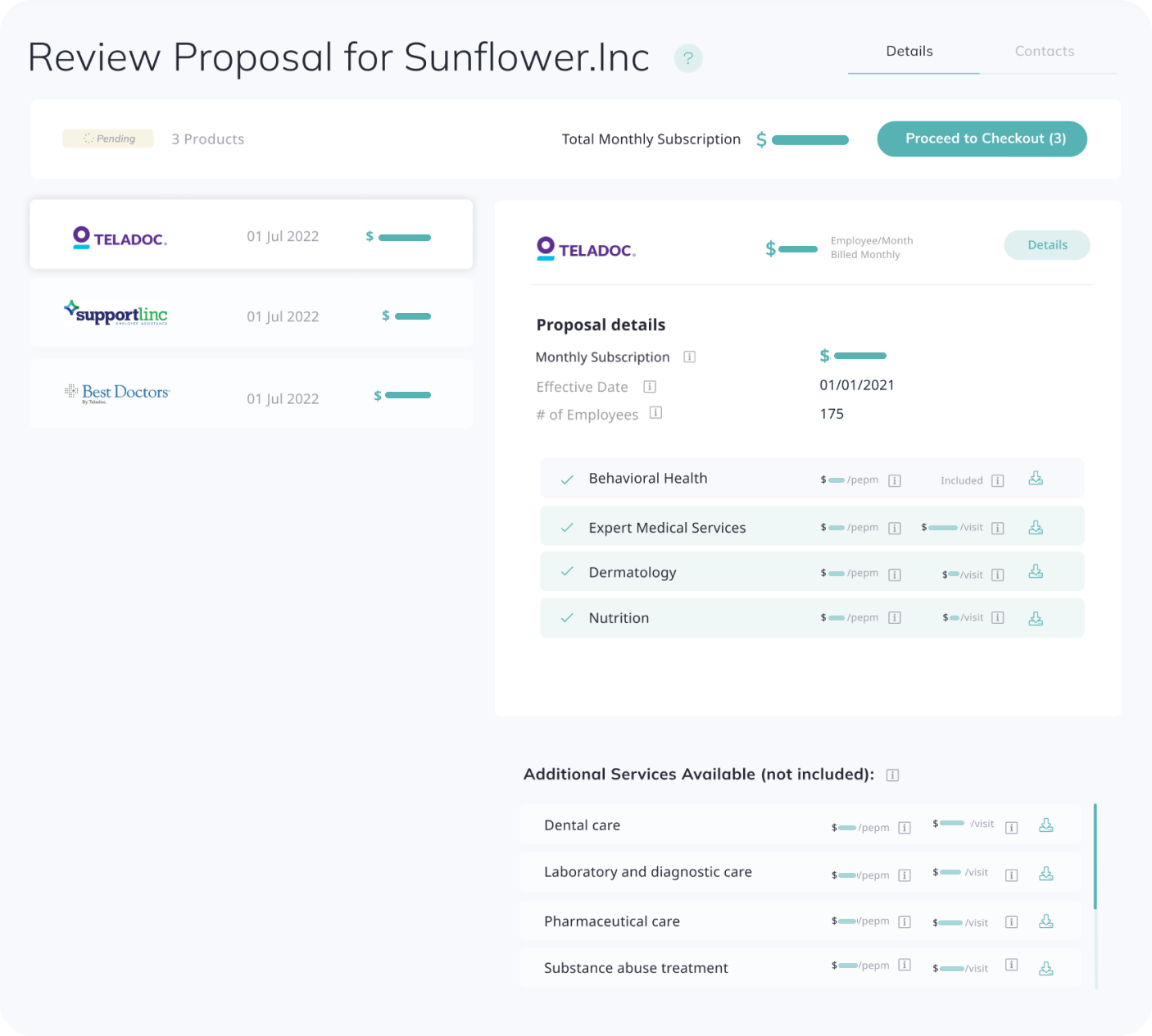
If the Broker creates multiple product proposals, the Employer may see several products from the invitation link. By clicking on the product tile, it is easy to overview each product’s details and find general proposal information at the top of the page.
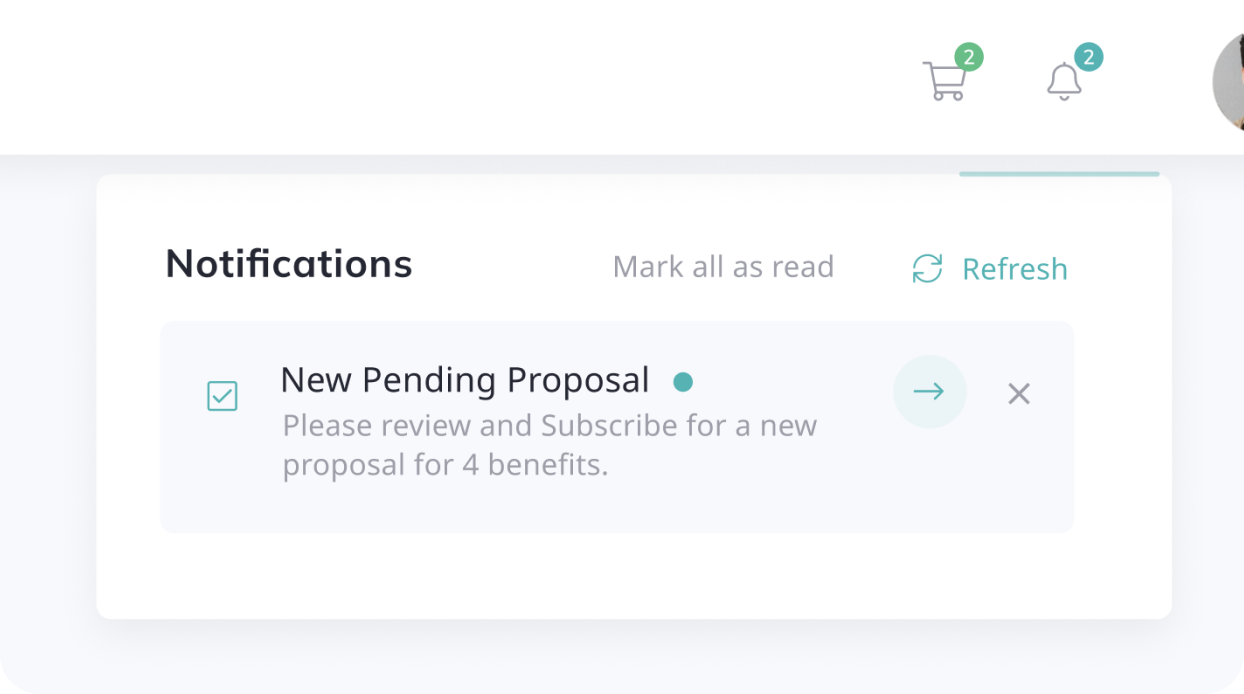
When the Employer logs on to the system, they will see a new pending proposal notification with a link to open the Proposal details and subscribe (see green arrow button below).
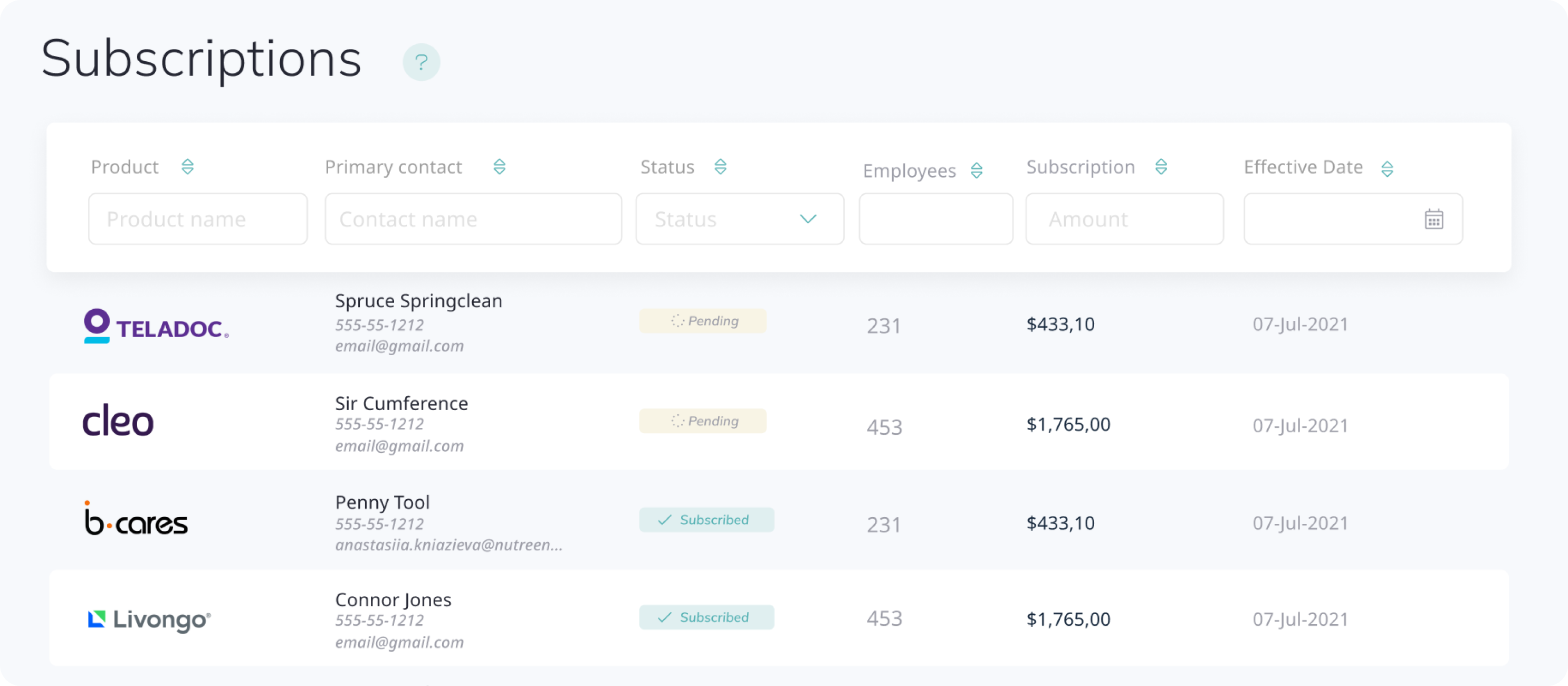
If the pending proposal has multiple benefits, it will be shown as separate lines for each benefit with the same status. You can click any line item to see the pending proposal details.
Reactivate Employees in the future
USERS
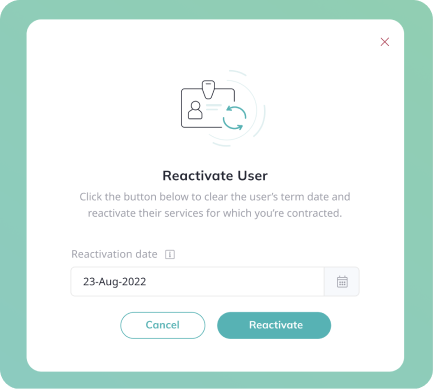
You will now see a new date input form on the Reactivate Employee modal window you click “Reactivate.” You must insert a reactivation date that is today or a date in the future on the modal. However, we default it to today’s date if that’s what is desired.
Terminate/Reactivate Employees supporting article
Saved payment methods feature
PAYMENTS
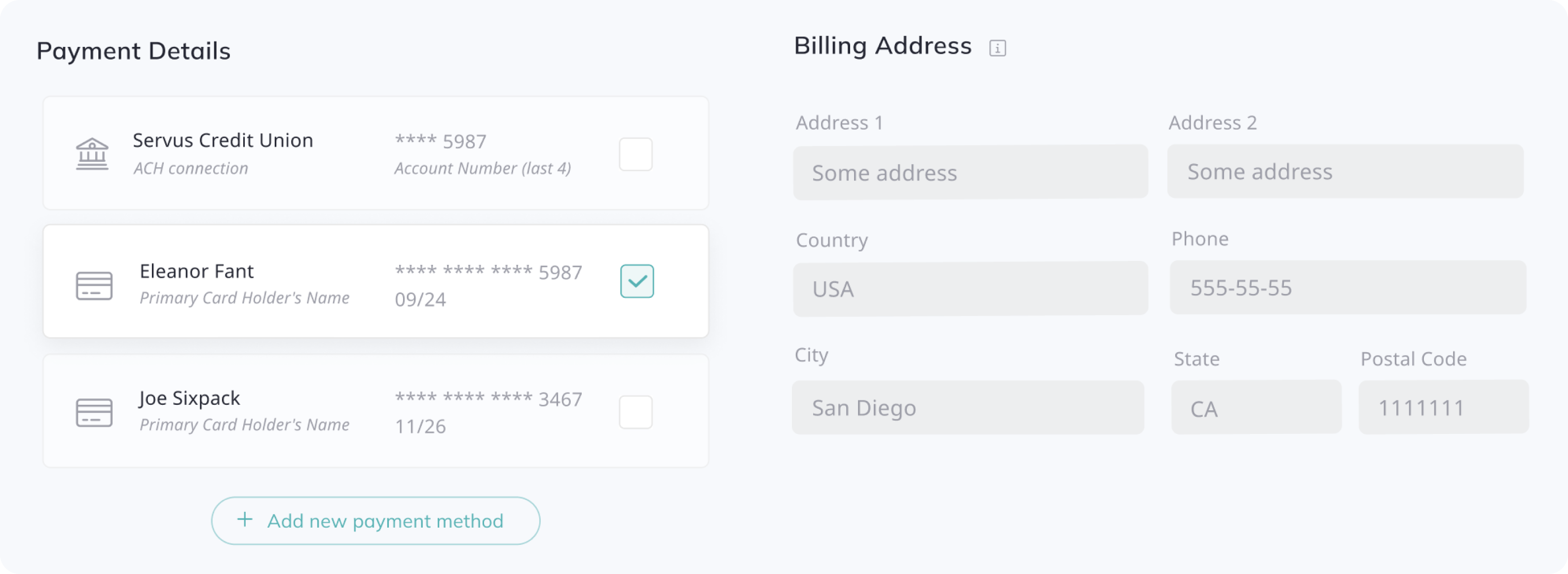
Once the Employer is subscribed to the first proposal, daisy.health will show all previous payment methods used in the system. They will be available on the “Pay now,” Retry failed payment,” and “Edit “Payment Method Subscribe to a new Proposal” pages.
Employers can check the preferred payment method from the list or add a new one using the “Add new payment method” button.
The billing address to the right is connected to each payment method. It is not editable and will be changed according to the payment method selected. You can pick a new address if you choose “Add new payment method.”
How to edit Payment Method supporting article
Retry Payment feature
PAYMENTS
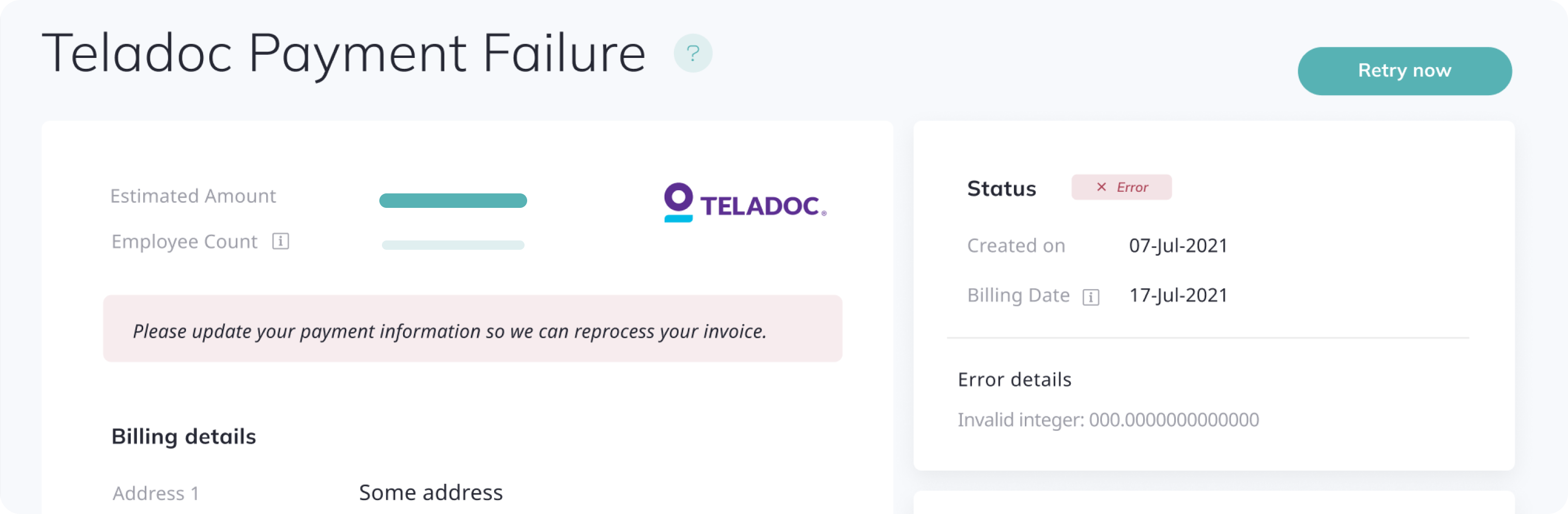
If a payment attempt has an error, the Employer can retry the payment again with the current or another payment method. The “Retry Now’ button will open the billing page and allow you to save the new payment method for the billing cycle and/or keep that as your new payment for future billings.
Retry failed payment supporting article
Manual ACH Bank Account
PAYMENTS
We now allow automatic and manual entry to enable Employers to link their bank accounts with our payment processing system. Of course, automatic is preferred and the most secure, but it requires you to enter your name and password through your bank or our payment provider. Some customers don’t prefer doing that, so we offer the option to enter your bank account and routing number manually.
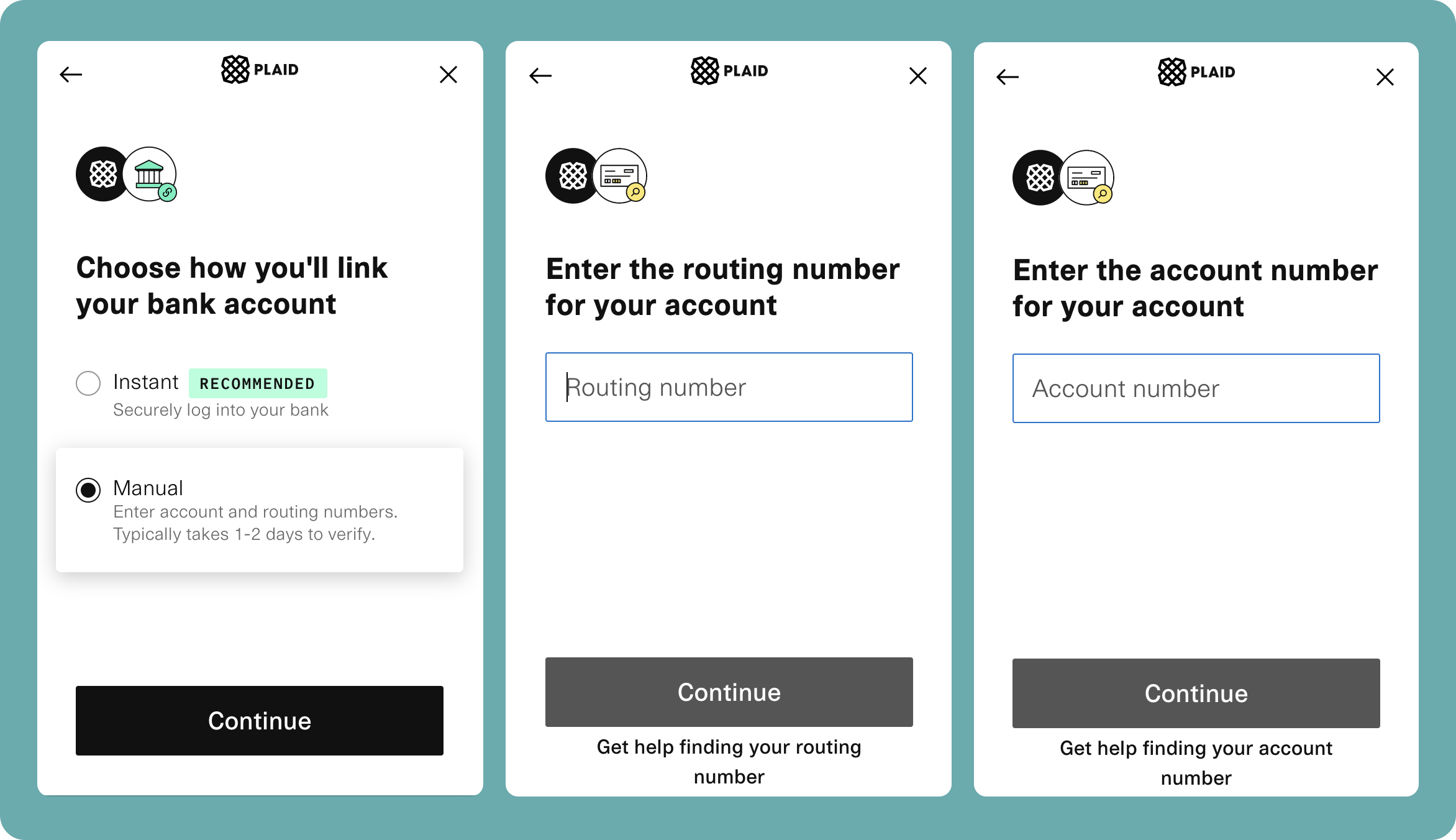
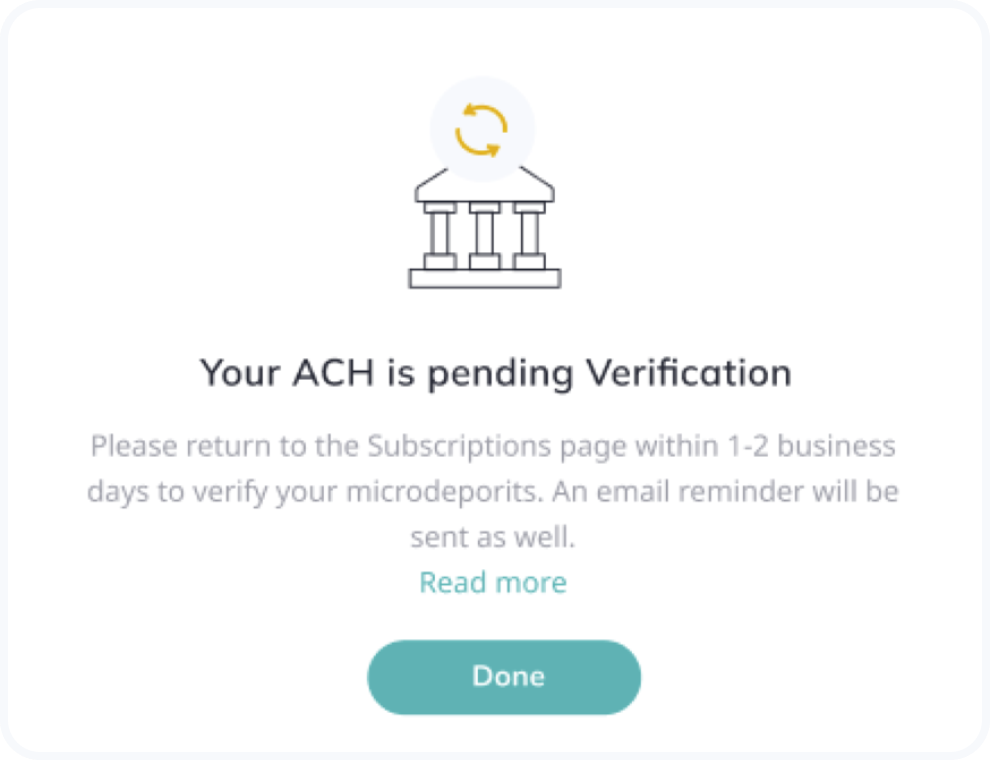
Once entered, you will need to return to our website within 1-2 days to complete the verification process. After that, your bank will be linked to your subscriptions for future payments.